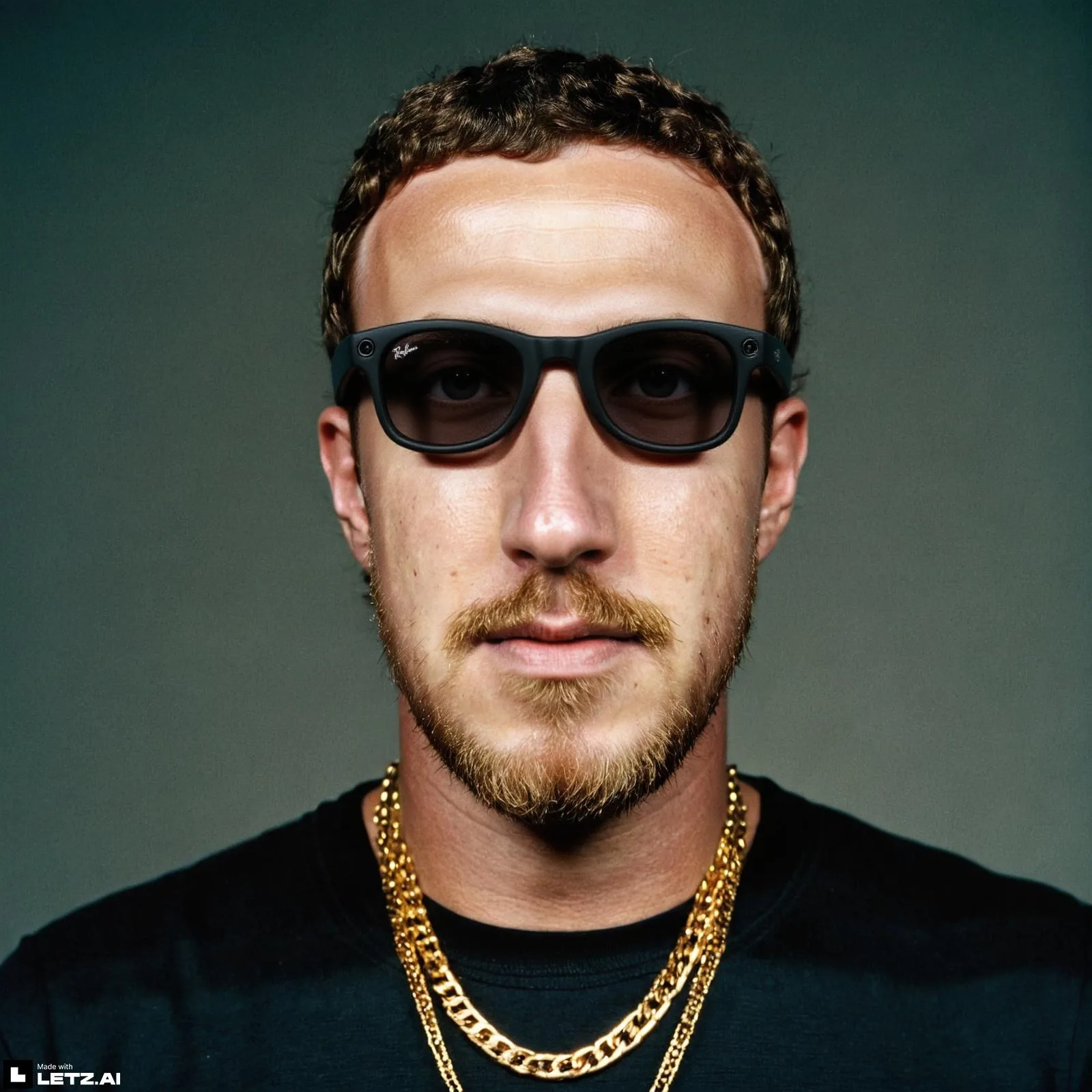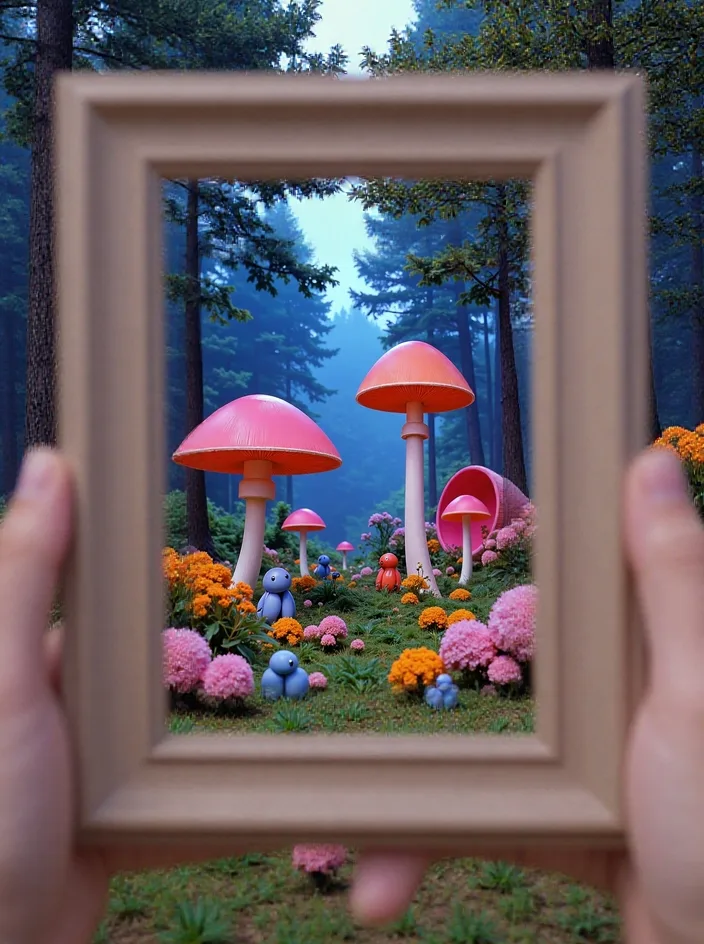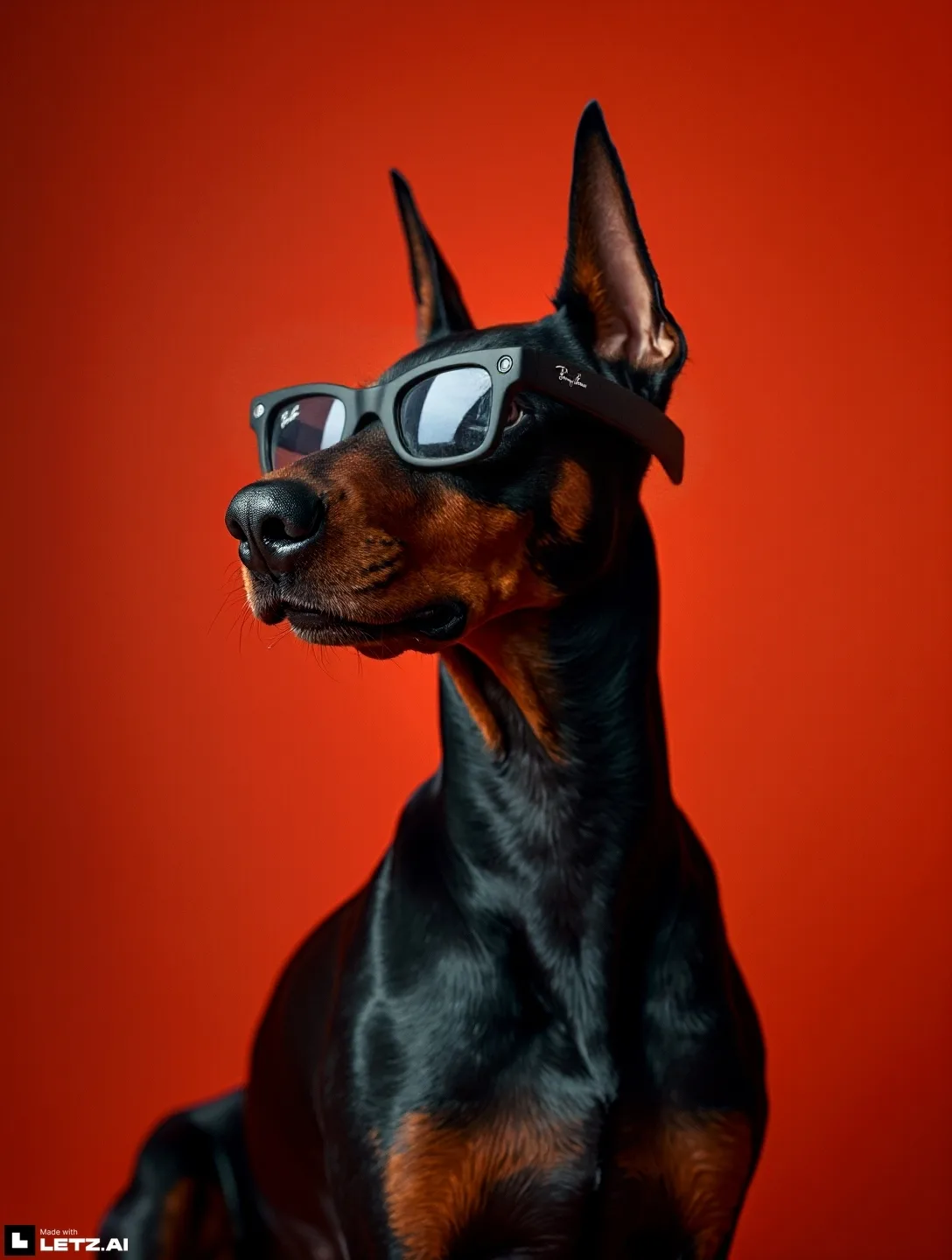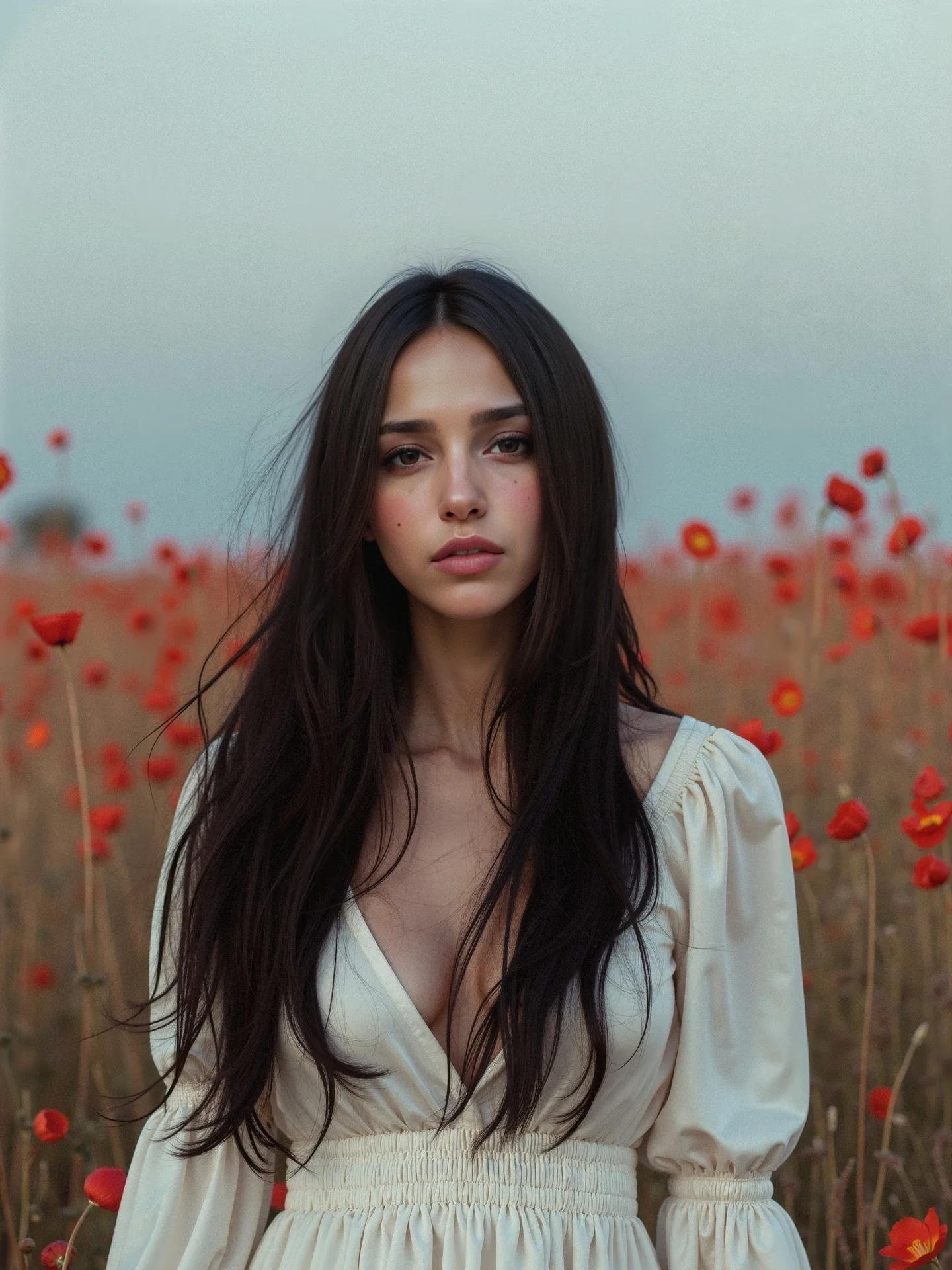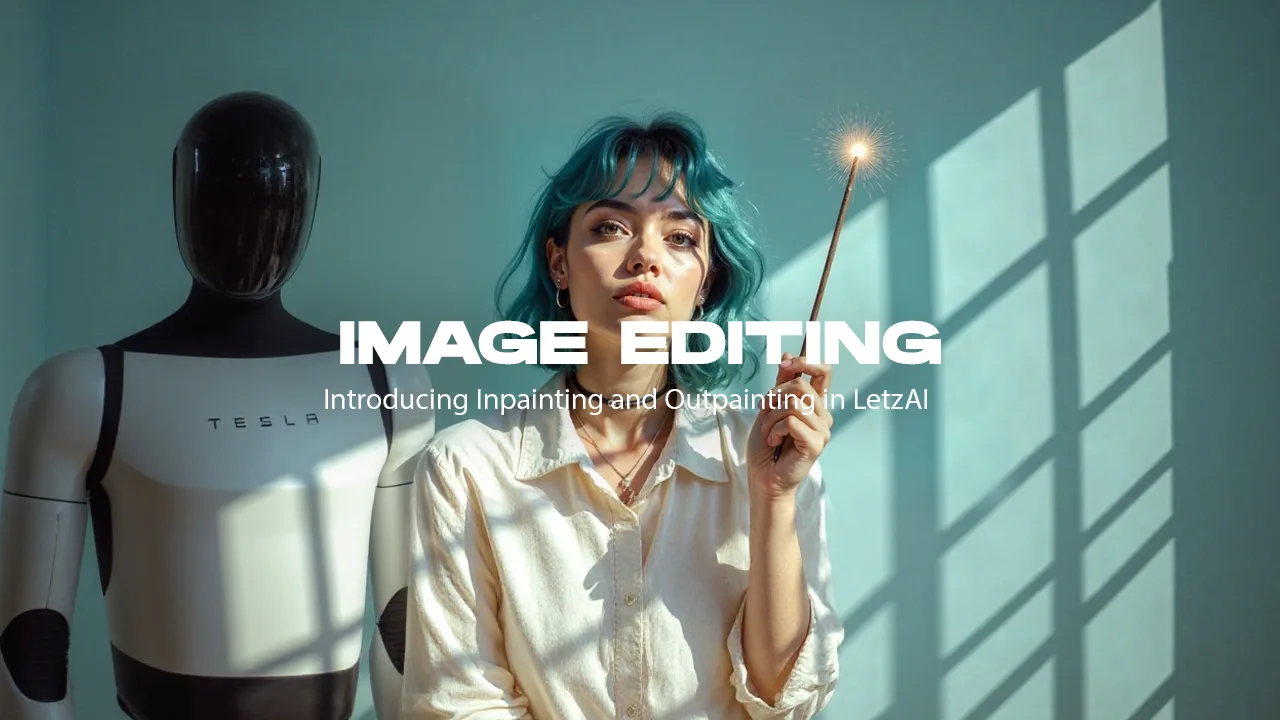
We’re excited to announce that LetzAI finally has its own image editing features.
Today we’re launching the public BETA of the first two: Inpainting and Outpainting.
Inpainting and Outpainting
You can use Inpainting to fix those tiny little errors in your images, or add any person or object of your choice to your images.
Outpainting is useful if you want to extend a scene beyond its typical borders and discover more about a frame.
You can use any available LetzAI Model with our edit features. This means that you can add specific items into your images, or edit them so they fit your vision perfectly.
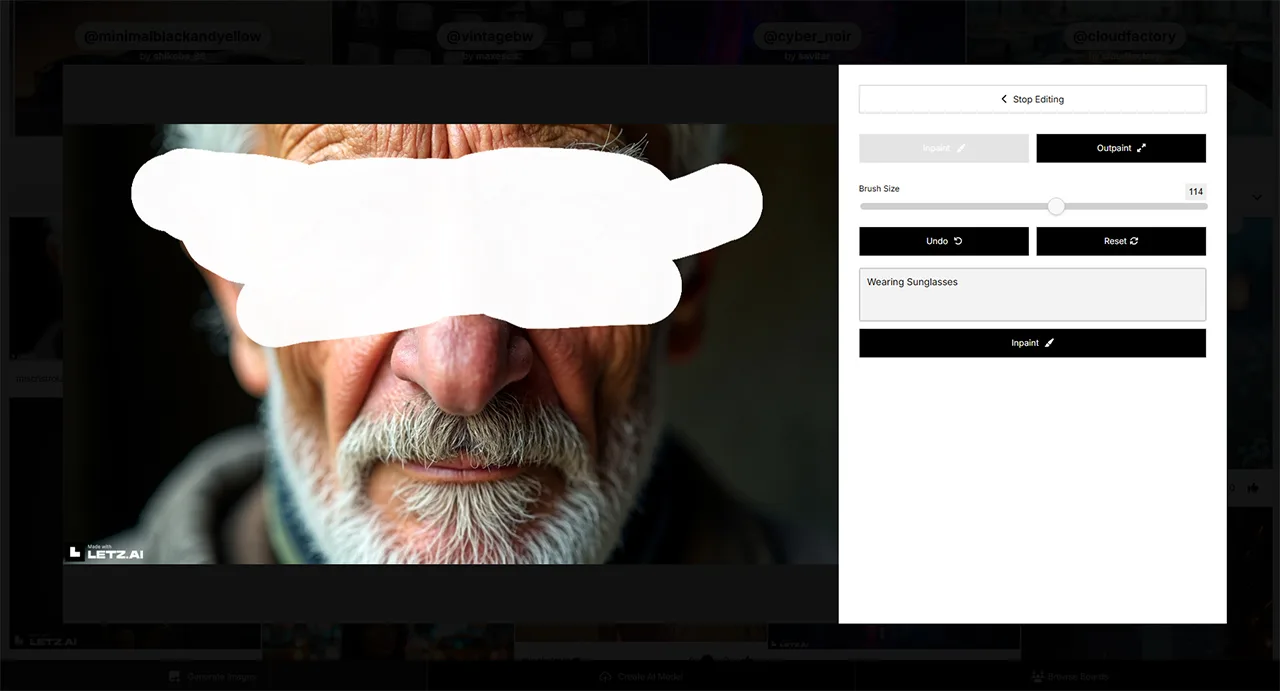
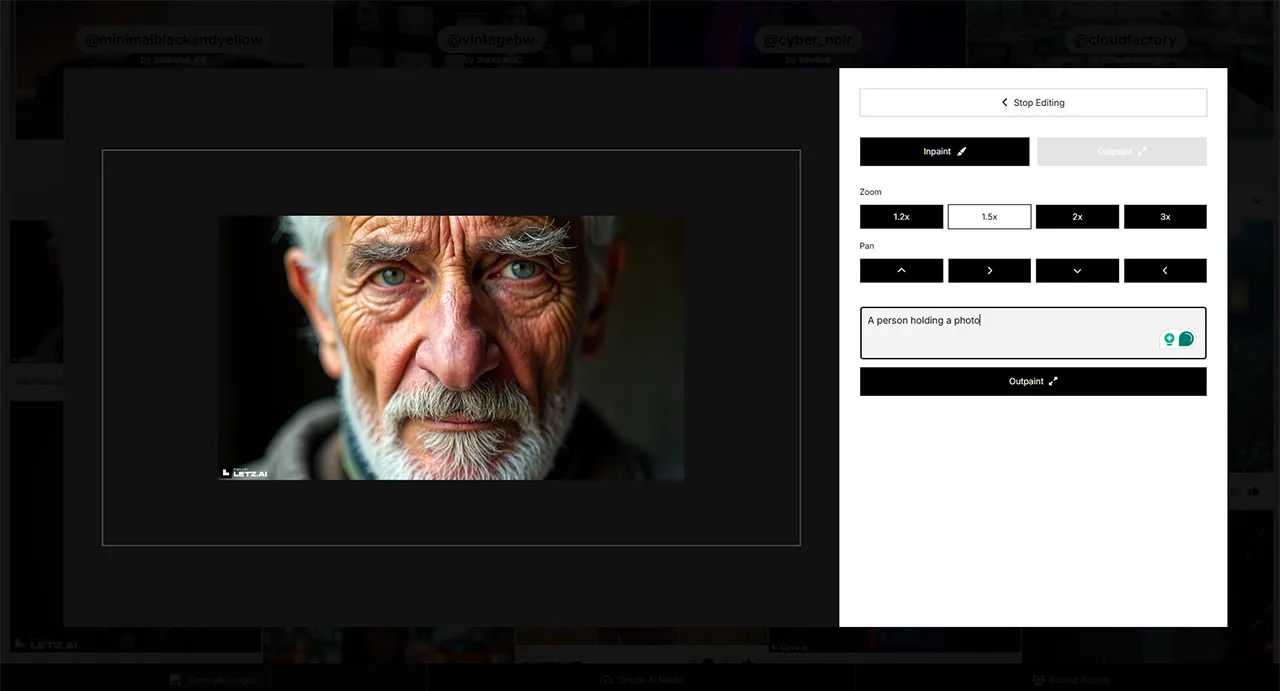
Editing on LetzAI is collaborative
'Collaborative Editing' means that you can remix any user’s images, and publish them. We keep track of an editing history, enabling you to discover one image’s history, its original and see who has contributed to which part of the image.
A new feed called “Related images” will appear below your images. "Related images" will display all the images that are based on your currently selected image, including regenerations. This enables you to explore LetzAI images like never before.
Both private and public images can be edited. If you share a private image with another user and they decide to edit and publish it, your original image will become publicly accessible through the edit history as well. Please keep this in mind when sharing your images with other people.
Technical Information
Editing an image costs 20 credits and takes between 20-60s depending on your image's size and editing operation.
Every Edit will generate 3 variations at the same time - meaning you will get to choose with which edited images you want to continue working. If you like something, you can publish it on the feed for others to see and remix it.
Images that are outpainted will keep a maximum resolution of 1920x1920. This means that images are being resized before they’re being outpainted, and you can NOT use outpainting to create images that have a higher resolution than 1920x1920.
Using the directional arrows to outpaint an image will add 30% of the image's width/height to that direction.
Every edited image can be upscaled using our upscaling functionality.
Interrupting an Edit generation costs 1 Credit, the same as a normal image generation.
Edited images cannot be “regenerated” in the traditional sense. You will need to access the original image to perform a regeneration. Every regeneration will thus be counted towards the original image, not the edited image.
Tips for good results
To achieve the best results with Inpainting, we recommend two things:
- Always enter what you want to see in the prompt bar (you can tag models too). If you need a neutral area filled, try using a prompt like "neutral grey background".
- Always inpaint a larger area than you want to see in the final image. Be generous with your brushed area, otherwise your inpainted results may look weird.
You can combine inpainting outpainting methods in several steps. For example, you can first outpaint an image, and then take that image to inpaint and remove any elements you don't like.
If you want to add a specific item to an image, we recommend first outpainting the image, and then inpainting the area where you want to add the item.
Have fun!
We hope that you will have a lot of fun with these new features.
We know that they were much requested and we wanted to make sure to provide an experience that makes sense in the scope of our social platform.
We consider the current versions to be beta features and will keep improving edititing functionalites. We will also add more to them over time, e.g. background removal.
Feel free to share your first remixes online and tag us! And as usual, if you spot any problems, please reach out to us to report them.
Finally, please find here a few examples to inspire your own creations: