We’ve added a new way to make editing easier - and smarter - inside the LetzAI Context Editing tab. We call it “Presets”, and it's now available to all users on a subscription plan.
Presets are designed to remove the randomness and guesswork out of common edits by giving you pre-defined scenarios you can apply with one click.
What are Presets?
Presets are ready-made editing actions inside the Context Editing panel. You’ll find them under the prompt input field when editing an image by clicking on “Use Preset”.
Each preset combines a basic tuned prompt that can be further improved by you with a matched model behind the scenes. This gives you more control and confidence to get the desired outcome without needing to craft perfect instructions every time.
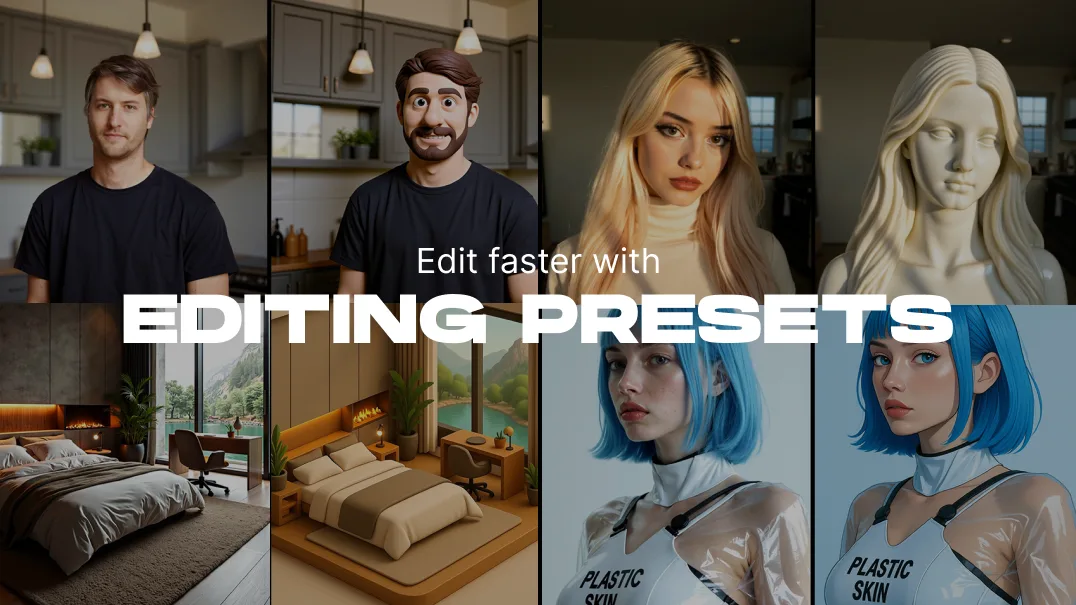
They’re not just shortcuts for various styles. Presets like, for example, “In-Scene” can also help you change details within a scene without losing too much consistency in the overall setup and background of said scene.
Examples


More presets will be added over time.
How to Use Presets
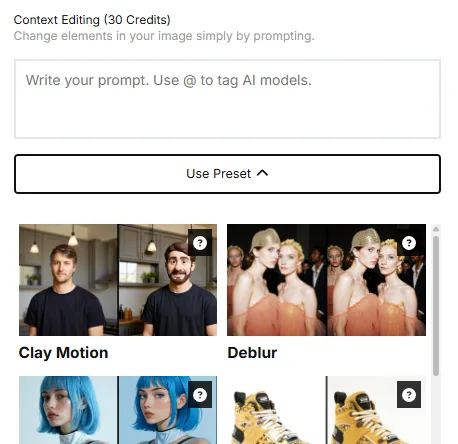
- Upload an image or pick a generated one
- Head to the Edit tab
- Click “Use preset”
- Choose a preset from the scrollable list and hit Generate
- Watch your image update — or tweak the prompt if needed
Tip: You can (and in many cases should) edit the default prompt after choosing a preset — it’s flexible, not locked. Describing what exactly you want to change will always improve the result.
Better results with presets
Pushing the default context editing feature into the right direction by only using prompts can be hard. Writing one that works well and produces consistent results across different images? Even harder.
Our Presets take care of the behind-the-scenes tuning - pairing your input with the right model and prompt structure - so you can stay focused on what you actually want to change.
Availability via API
As of now, presets are targetable via API as well, but we do not have a dedicated list yet. For now, users will have to rely on the frontend gallery.
To use Context Editing via the LetzAI API, use the /image-edits endpoint and set the mode to: "context".
To trigger a preset, you now have to send the pre-defined prompt that you can find on the website of the desired preset
as instructions along with your image.