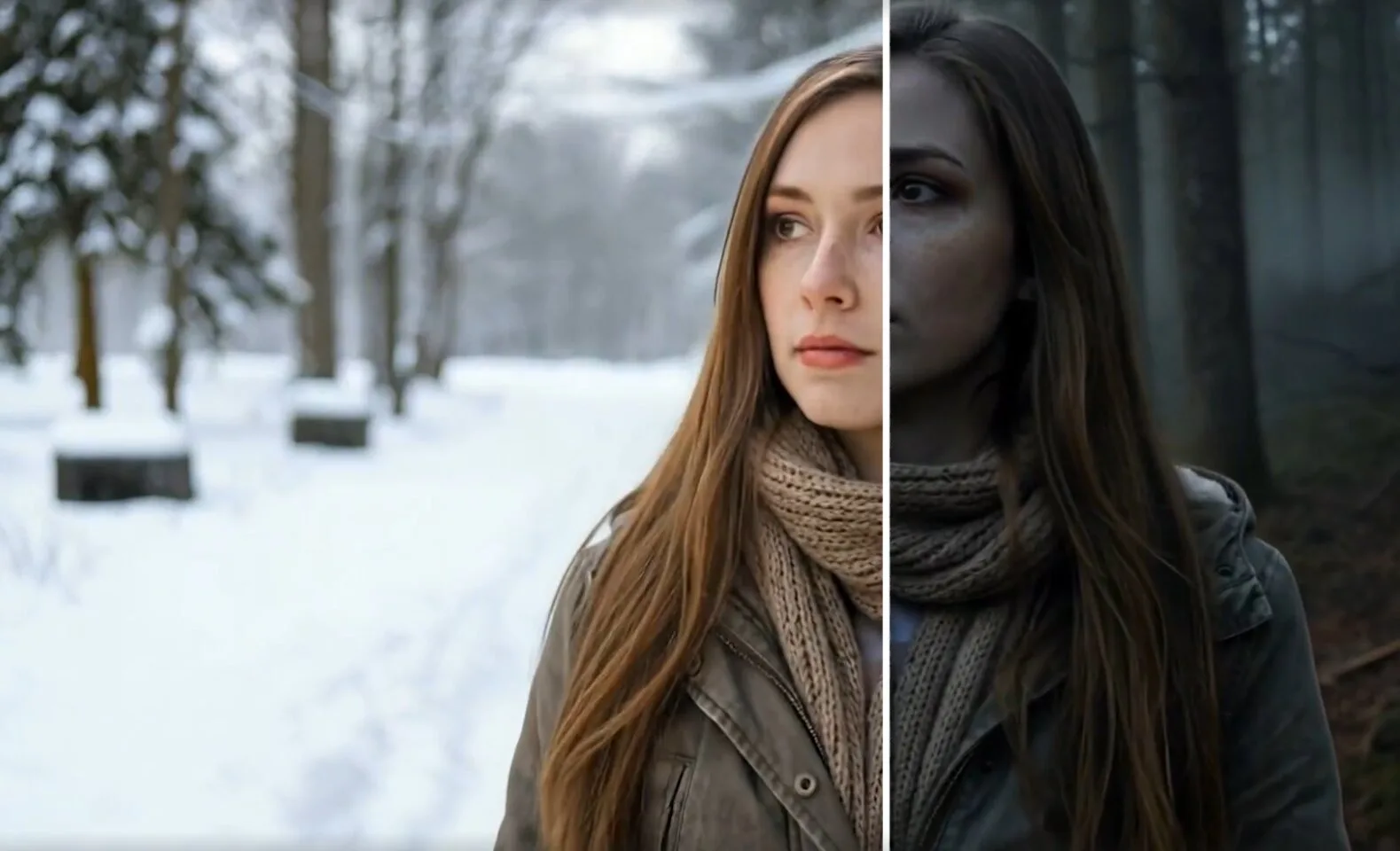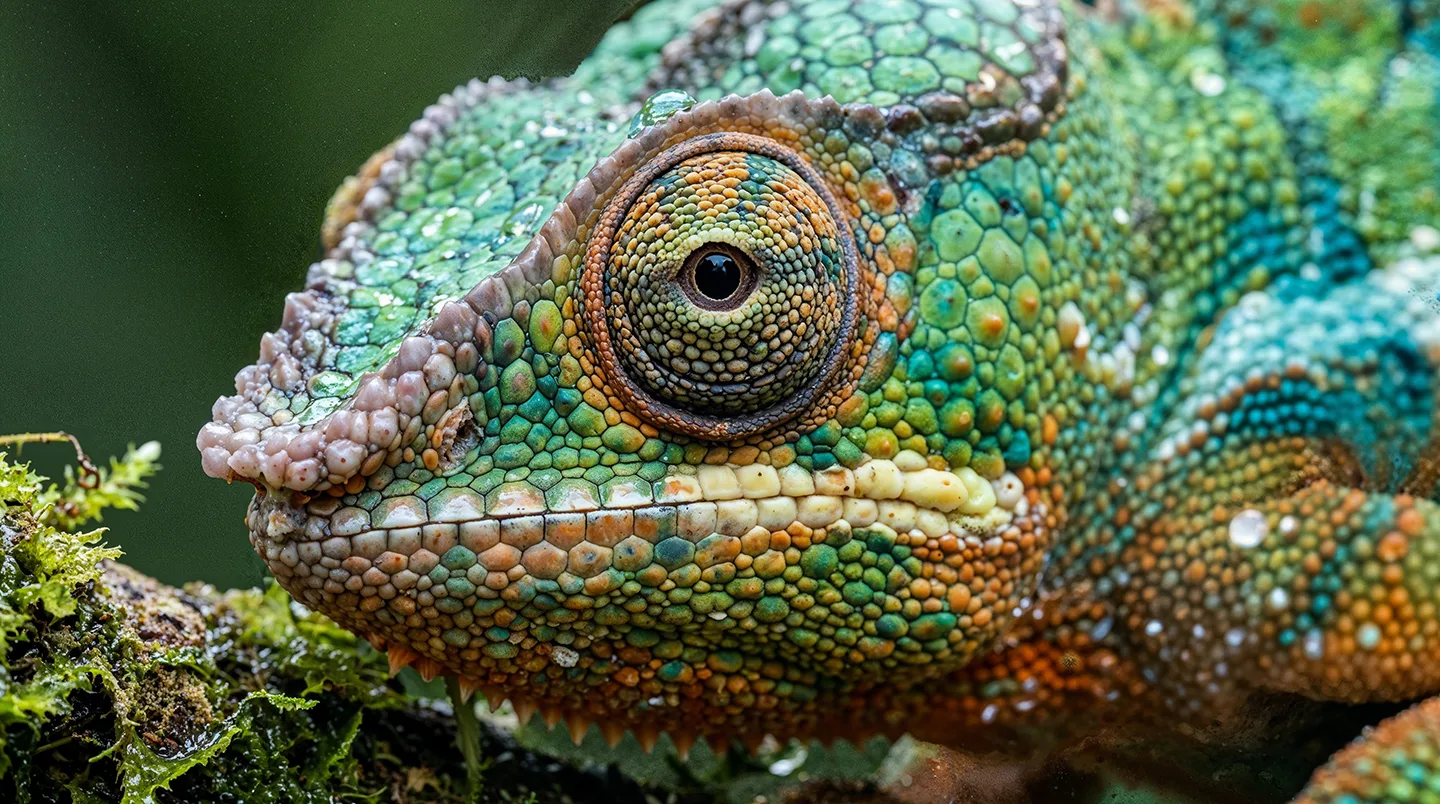
We're kicking off 2026 with some major new features! This February update brings Text-to-Video generation, powerful new upscaling options from Magnific, and a brand new Models page to help you discover all the AI models available on LetzAI.
🎬 Text-to-Video Generation
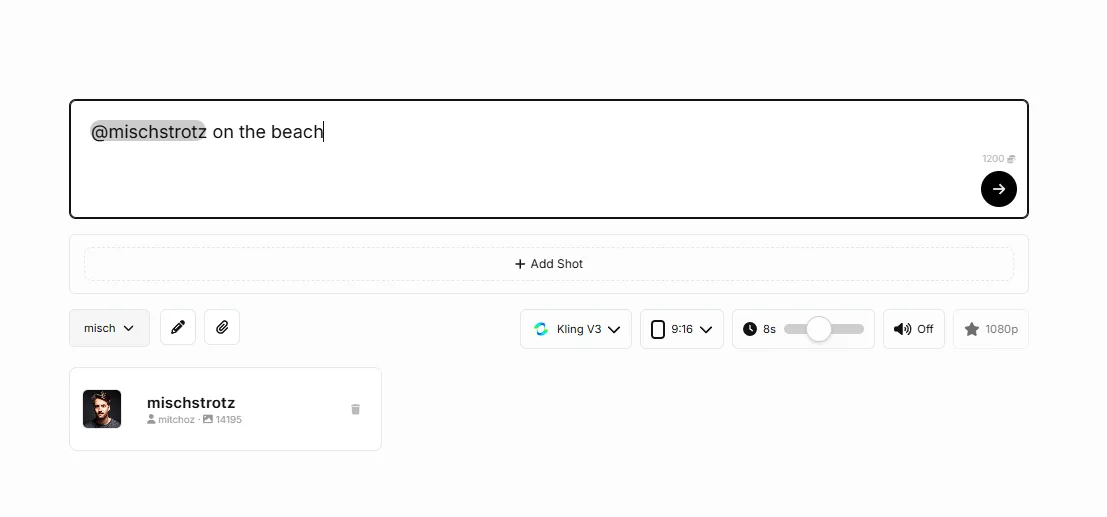
One of our most requested features is finally here: Text-to-Video! You can now create AI-generated videos directly from text prompts, without needing a source image.
Simply describe the scene you want to create, and our AI will generate a video from scratch. This opens up endless creative possibilities—from cinematic scenes to abstract animations, all created purely from your imagination.
How to Use Text-to-Video
- Go to the Animate tab
- Instead of uploading an image, simply enter your text prompt describing the video you want
- Select your preferred video model (Kling V3, VEO 3.1, WAN 2.5, and more)
- Choose duration, resolution, and other settings
- Click Generate and watch your vision come to life!
Text-to-Video works with all our video models including Kling V3 with its multi-shot storytelling capabilities, Google VEO 3.1 with native audio, and WAN 2.5 for budget-friendly generations.
You can also tag models in your generations directly from the animation prompt fields. Doing so will add your models to the prompts as references. This feature is experimental and may not work with all models.
Pro tip: Be descriptive with your prompts! Include details about camera movement, lighting, mood, and action to get the best results.
🔍 New Upscalers: Magnific Creative & Precision
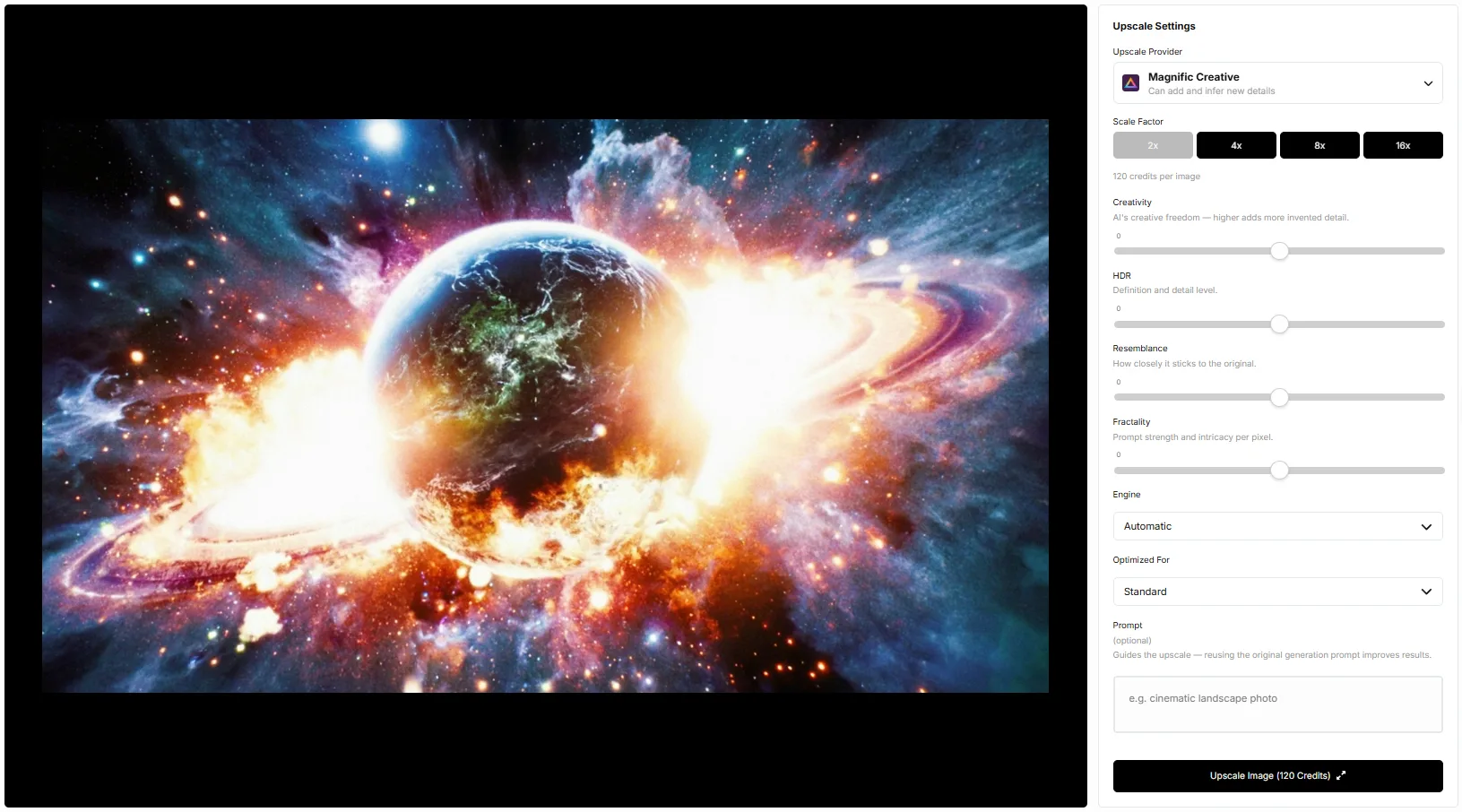
We're excited to announce a larger update to our Upscaling system, which now supports different upscaling methods including the world's best Upscaler: Magnific. This means that you can now use Magnific's Creative and Precision Upscaler directly inside of LetzAI.
Magnific Creative
Magnific Creative is designed for those who want their upscaled images to have even more detail and creativity. Unlike traditional upscalers that simply enlarge pixels, Magnific Creative can actually add and infer new details guided by an optional text prompt.
Features include:
- Scale factors: 2x, 4x, 8x, up to 16x
- Creativity slider: Control how much the AI adds new details (0 = faithful, higher = more creative)
- HDR enhancement: Add dynamic range to your images
- Resemblance control: Balance between original and enhanced
- Optional prompt: Guide the upscaling with text descriptions
Magnific Precision V2
Magnific Precision V2 is the opposite approach—it's a faithful upscaler with zero hallucinations. Perfect for preserving text, UI elements, logos, and any content where you need pixel-perfect accuracy.
Features include:
- Scale factors: 2x, 4x, 8x, up to 16x
- Sharpen: Enhance edge definition
- Smart Grain: Add natural film grain
- Ultra Detail: Maximum detail preservation
- Flavor presets: Photo, Sublime, Photo Denoiser
Both upscalers are available in the Upscale tab alongside a new Nano Banana Pro Upscaler and the original LetzAI upscalers. Choose the right tool for your needs:
| Upscaler | Best For |
|---|---|
| LetzAI (Sharp/Soft/Simple) | Quick, affordable upscaling for everyday use |
| Nano Banana Pro | AI-powered enhancement up to 4K |
| Magnific Creative | Adding detail and creativity to photos and art |
| Magnific Precision V2 | Preserving text, UI, logos—zero hallucinations |
📋 New Models Page
If you've ever wondered what AI models are available on LetzAI, we now have you covered. We've created a dedicated Models page that lists all our foundation models in one place!
The new Models page features:
- Complete model catalog: All image, video, and upscaling models
- Filter by category: Quickly find Image, Video, or Upscaling models
- Provider information: See which company created each model (Google, Black Forest Labs, Kuaishou, ByteDance, Freepik, and more)
- Capability badges: Instantly see what each model can do (Generation, Editing, Video, Upscaling)
- Copy model names: Click to copy the exact model identifier for API use
- Deprecation notices: Clearly see which models are no longer available
This is especially useful for developers using our API—you can quickly find model identifiers and understand each model's capabilities.
Check it out: letz.ai/models
Get Started
All these features are available now! Here's how to try them:
- Text-to-Video: Head to the Animate tab and start typing your prompt
- Magnific Upscalers: Go to the Upscale tab and select Magnific Creative or Precision from the provider dropdown
- Models Page: Visit /models to explore all available AI models
We're constantly working to bring you the best AI creative tools. If you have feedback or feature requests, reach out to us on X/Twitter or via our support channels.
Happy creating!
The LetzAI Team