Overview
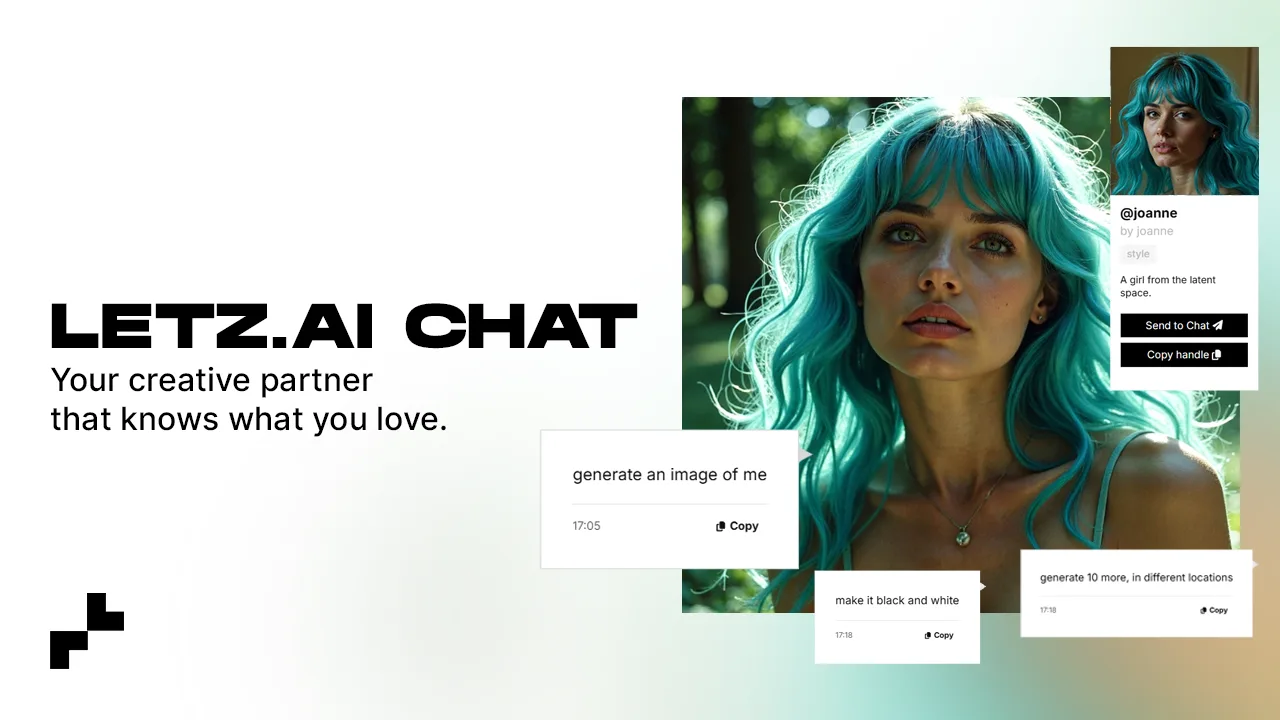
LetzAI Chat is a conversational AI assistant that can generate images, create videos, edit photos, and more — all through natural language. Instead of navigating between different tools, you describe what you want in plain text and the assistant handles the rest.
Chat is available to users with an active paid subscription. Access it from the Chat tab in the top navigation.
What can Chat do?
The AI assistant has access to the full LetzAI tool suite. You can ask it to:
| Capability | Example prompt |
|---|---|
| Generate images | "Create a photorealistic image of a mountain cabin at sunset" |
| Edit images | "Remove the person in the background of this image" |
| Upscale images | "Upscale this image to 4x resolution" |
| Create videos | "Turn this image into a video with a slow camera pan" |
| Browse models | "What models are available for anime-style images?" |
| Answer questions | "How do models and tagging work?" or "What resolution should I use?" |
Using Chat
Starting a conversation
Click the Chat tab to open a new conversation. Type your request in the message field and press Enter or click Send. The assistant will respond with text, generate images inline, or perform the requested action.
Uploading files
You can upload images directly in the chat. Click the attachment icon or drag and drop an image into the chat window. Once uploaded, you can ask the assistant to edit, upscale, or animate it.
Multi-step workflows
Chat excels at chaining multiple tools together. For example:
- "Generate an image of a product on a marble countertop"
- "Now remove the shadow on the left side"
- "Upscale it to high resolution"
- "Turn it into a short video with a slow zoom"
The assistant remembers context from earlier messages, so you can build on previous results without re-uploading or re-describing.
Conversation history
Your conversations are saved automatically and appear in the sidebar. You can resume any previous conversation, or start a new one at any time. Conversations can also be deleted from the sidebar.
How tool calls work
When the assistant performs an action (like generating an image), you'll see a tool call indicator in the chat. The assistant decides which tool to use based on your request, fills in the parameters automatically, and streams the result back into the conversation.
You don't need to know the names of tools or their parameters — just describe what you want in natural language.
Tips for effective Chat use
- Be specific. The more detail you provide, the better the result. "A cinematic portrait of a woman with red hair, dramatic lighting, 16:9" works better than "generate a portrait".
- Reference previous results. Say "make it wider" or "now animate the last image" — the assistant understands context.
- Ask questions. Chat can explain how features work, suggest prompts, compare models, and help you troubleshoot.
- Upload reference images. Providing a visual reference gives the assistant much more to work with than text alone.
- Use Chat for complex workflows where you need to chain multiple tools. For simple, one-off generations the dedicated Generate/Edit/Animate tabs may be faster.
Availability
AI Chat requires an active paid subscription or organization membership. The number of chat messages and tool calls per day depends on your plan tier. Check Pricing for details.
Video tutorial: How to use LetzAI Chat
A beginner-friendly walkthrough by Tom Osman covering the most common Chat workflows.