Reference for everything you can do from the keyboard, pointer, and context menus on a Canvas board. On Windows and Linux, use Ctrl anywhere this guide shows ⌘ (Command). On Mac, ⌥ is the Option key.
Right-click (or Control-click on a Mac trackpad) for actions that are not always visible elsewhere — for example, change the board background color, fit or reset zoom, or open node-specific actions like download, duplicate, and layer order. See Right-click menus for the full list.
View-only collaborators can use navigation shortcuts (tools V / H, zoom, fit) but not editing or generation shortcuts.
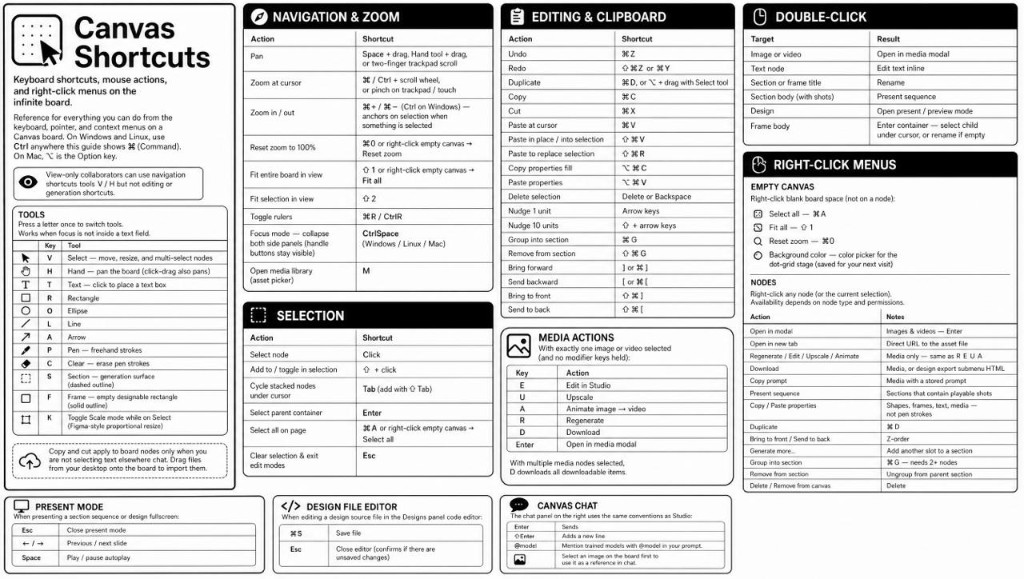
Tools
Press a letter once to switch tools. Works when focus is not inside a text field.
| Key | Tool |
|---|---|
| V | Select — move, resize, and multi-select nodes |
| H | Hand — pan the board (click-drag also pans) |
| T | Text — click to place a text box |
| R | Rectangle |
| O | Ellipse |
| L | Line |
| A | Arrow |
| P | Pen — freehand strokes |
| C | Clear — erase pen strokes |
| S | Section — generation surface (dashed outline) |
| F | Frame — empty designable rectangle (solid outline) |
| M | Movie — multi-track video timeline |
| K | Toggle Scale mode while on Select (Figma-style proportional resize) |
When a single image or video is selected, E, U, A, and R run media actions instead of switching tools — see Media actions.
Color
| Key | Action |
|---|---|
| I | Eyedropper — sample a color from the screen and apply it to the active fill, stroke, or text color (when a colorable node is selected, a drawing tool with color options is active, or a color picker is open) |
Navigation & zoom
| Action | Shortcut |
|---|---|
| Pan | Space + drag, Hand tool + drag, or two-finger trackpad scroll |
| Zoom at cursor | ⌘ / Ctrl + scroll wheel, or pinch on trackpad / touch |
| Zoom in / out | ⌘+ / ⌘− (Ctrl on Windows) — anchors on selection when something is selected |
| Zoom scope (+ / − at click) | Hold Z then click to zoom in, or hold AltZ (or Alt while Z is held) then click to zoom out — same steps as the bottom-left + / − controls |
| Zoom to region | Hold Z and drag a rectangle — releases to fit that region to the viewport (Figma-style zoom to selection) |
| Reset zoom to 100% | ⌘0 or right-click empty canvas → Reset zoom |
| Fit entire board in view | ⇧1 or right-click empty canvas → Fit all |
| Fit selection in view | ⇧2 |
| Toggle rulers | ⌘R / CtrlR |
| Focus mode — collapse both side panels (handle buttons stay visible) | CtrlSpace (Windows / Linux / Mac) |
| Open media library (asset picker) | M |
Selection
| Action | Shortcut |
|---|---|
| Select node | Click |
| Add to / toggle in selection | ⇧ + click |
| Cycle stacked nodes under cursor | Tab (add with ⇧Tab) |
| Select parent container | Enter |
| Select all on page | ⌘A or right-click empty canvas → Select all |
| Clear selection & exit edit modes | Esc |
Editing & clipboard
| Action | Shortcut |
|---|---|
| Undo | ⌘Z |
| Redo | ⇧⌘Z or ⌘Y |
| Duplicate | ⌘D, or ⌥ + drag with Select tool |
| Copy | ⌘C |
| Cut | ⌘X |
| Paste at cursor | ⌘V |
| Paste in place / into selection | ⇧⌘V |
| Paste to replace selection | ⇧⌘R |
| Copy properties (fill, stroke, …) | ⌥⌘C |
| Paste properties | ⌥⌘V |
| Delete selection | Delete or Backspace |
| Nudge 1 unit | Arrow keys |
| Nudge 10 units | ⇧ + arrow keys |
| Group into section | ⌘G |
| Remove from section | ⇧⌘G |
| Bring forward | ] or ⌘] |
| Send backward | [ or ⌘[ |
| Bring to front | ⇧⌘] |
| Send to back | ⇧⌘[ |
Copy and cut apply to board nodes only when you are not selecting text elsewhere (chat, inputs, etc.). Drag files from your desktop onto the board to import them.
Media actions
With exactly one image or video selected (and no modifier keys held):
| Key | Action |
|---|---|
| E | Edit in Studio |
| U | Upscale |
| A | Animate (image → video, or re-animate video) |
| R | Regenerate |
| D | Download |
| Enter | Open in media modal |
With multiple media nodes selected, D downloads all downloadable items.
Double-click
| Target | Result |
|---|---|
| Image or video | Open in media modal |
| Text node | Edit text inline |
| Section or frame title | Rename |
| Section body (with shots) | Open the Sequence room (View) |
| Movie | Open the Sequence room (View) |
| Design | Open present / preview mode |
| Frame body | Enter container — select child under cursor, or rename if empty |
Right-click menus
Right-click to open a context menu. What you see depends on where you click: blank board space shows board-level options (including background color); clicking a node shows actions for that selection. Many of these actions also have keyboard shortcuts — listed here when they do.
Empty canvas
Right-click blank board space (not on a node). The menu includes navigation shortcuts plus a Background color picker at the bottom for the dot-grid stage (saved for your next visit):
- Select all — ⌘A
- Fit all — ⇧1
- Zoom in — Z (hold, then click on the board)
- Zoom out — AltZ (hold, then click on the board)
- Reset zoom — ⌘0
The Background color row opens a color picker in the menu footer — use it to tint the canvas behind your content.
Nodes
Right-click any node (or the current selection). Availability depends on node type and permissions:
| Action | Notes |
|---|---|
| Open in modal | Images & videos — Enter |
| Open in new tab | Direct URL to the asset file |
| Regenerate / Edit / Upscale / Animate | Media only — same as R E U A |
| Download | Media, or design export submenu (HTML, PDF, PNG) |
| Copy prompt | Media with a stored prompt |
| Open slideshow | Sections with contents — lightbox, not the timeline |
| Promote to Movie | Gives a section's cut its own Movie node |
| Open movie / Edit movie | Movie nodes — View / Edit Sequence room |
| Copy / Paste properties | Shapes, frames, text, media — not pen strokes |
| Duplicate | ⌘D |
| Bring to front / Send to back | Z-order |
| Generate more… | Add another slot to a section |
| Group into section | ⌘G — needs 2+ nodes |
| Remove from section | Ungroup from parent section |
| Delete / Remove from canvas | Delete |
Section lightbox
Double-click a section (or Open slideshow) to page through its contents — stills, clips, audio, designs, movies — with Review on the active slide and Download all for a zip of every media file. No Edit, no video export; cutting is what a Movie is for.
Sequence room (movies)
Movies open in the fullscreen Sequence room (sections open the lightbox instead). View plays with comments and labels on the shot under the playhead; the pencil switches to Edit (multi-track timeline + clip properties).
The View player has a seek bar (ticked at every shot boundary), play, volume and loop, plus two step buttons. Stepping follows what is on screen: over a video it moves one frame at a time, over a still it jumps to the next still.
Edit is a Premiere-style timeline: video rows stacked with the topmost row painting on top, audio rows below the heavier divider, and a drag between rows to change a row's height. Drag a clip with Alt held to leave the original in place and drop a copy; drag it above the top row or below the last audio row and that track is created for you — that drag is the only way to add a track, since an empty one is never the thing you were after. Under the row names, A adds a title and the filled square a colour card.
Clips carry the name and thumbnail of what they point at, and a clip whose source was deleted or is still generating is marked as such — on the stage both look the same as a fade to black.
Snapping is on by default (the magnet in the timeline toolbar, N): a dragged or trimmed clip latches onto the nearest clip edge on any track, the playhead, or the start of the film, and a dashed guide shows what it caught. Hold ⌘ / Ctrl while dragging to ignore it — Alt is taken by copy-drag.
Select several clips with ⇧-click, or by dragging a band across empty track space. A multi-clip drag moves everything in time, each clip staying on its own row.
Media in the header opens your media library over the room. Picking something puts it on the board — inside the section you are editing, or beside the film on a free spot — and adds it to the end of the sequence. Uploads work from the same panel.
| Key | Action |
|---|---|
| Esc | Leave Edit, or close the room |
| Space | Play / pause |
| ← / → | Step (frame over video, shot over stills) — one frame exactly in Edit, ⇧ for one second |
| Home / End | Jump to the start / end |
| ↑ / ↓ | Volume (View) |
| M | Mute / unmute |
| V / C | Select tool / Cut tool (Edit) |
| N | Snapping on / off — hold ⌘ / Ctrl mid-drag to ignore it (Edit) |
| ⌘K | Split every track at the playhead (Edit) |
| ⇧-click / drag a band | Add or remove a clip from the selection / select everything the band touches (Edit) |
| ⌘A | Select every clip (Edit) |
| Delete | Remove the selected clips (Edit) |
| ⌘C / ⌘X / ⌘V | Copy / cut the selection, paste it at the playhead keeping its spacing (Edit) |
| ⌘D | Duplicate the selection right after itself (Edit) |
| ⌘Z / ⇧⌘Z | Undo / redo — the whole editing history, not just the last cut (Edit) |
| = / - / \ | Zoom the timeline in / out / to fit (Edit) |
Present mode (designs)
When presenting a design or frame deck fullscreen:
| Key | Action |
|---|---|
| Esc | Close present mode |
| ← / → | Previous / next slide |
| Space | Play / pause autoplay |
Design file editor
When editing a design source file in the Designs panel code editor:
- ⌘S — save file
- Esc — close editor (confirms if there are unsaved changes)
Canvas chat
The chat panel on the right uses the same conventions as Studio: Enter sends, ⇧Enter adds a new line. Mention trained models with @model in your prompt. Select an image on the board first to use it as a reference in chat.