Overview
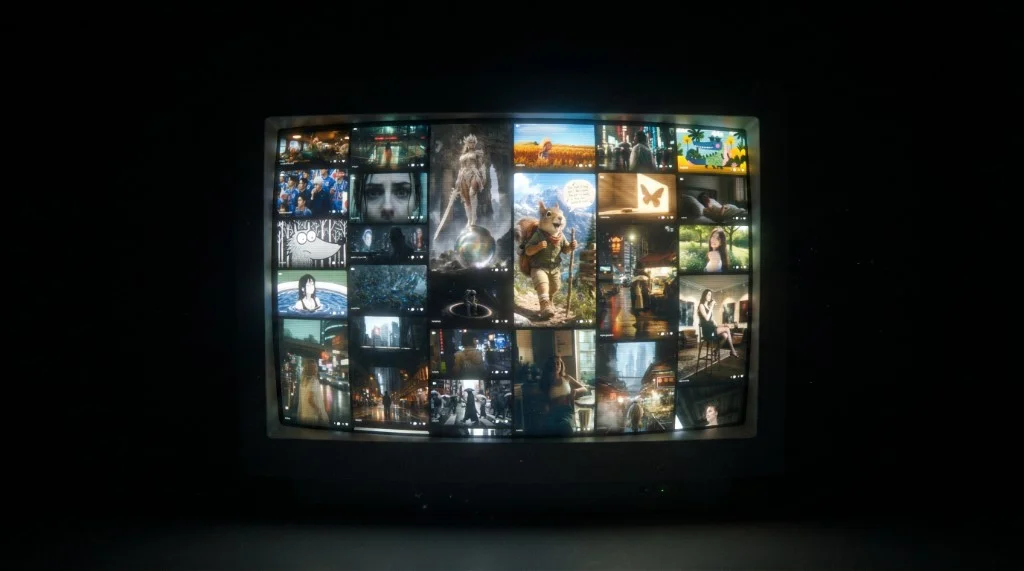
Explore is where LetzAI creators show their work. Everything you see there is a creation its owner chose to publish: images and videos from people all over the world, plus stories, guides and tutorials from the LetzAI team.
Nothing you make is public until you decide it is. Your creations are private by default, and publishing one is a single click.
What's on Explore
- Spotlight. The newest story from LetzAI leads the page, magazine style.
- The community feed. A wall of published images and videos. Click any of them to open it full size, like it, comment on it or look at who made it.
- Learn. A row of guides and tutorials that appears after your first screenful of work. News and stories also show up between the rows further down.
The community feed
The tabs above the feed change what you see:
| Tab | What it shows |
|---|---|
| Hot | Creations getting the most attention right now. This is where Explore opens. |
| New | The latest published work, newest first. |
| Top | The most liked creations. |
| Random | A shuffle of published work. Press Shuffle to draw a new set. |
| Following | New work from the creators you follow. |
| Liked | Everything you have liked, so you can find it again. |
Two switches on the right narrow the feed down. Videos turns video on or off, and Edits turns edited images on or off, which is handy if you only want to see images made from scratch. Following does not offer the Edits switch.
The feed keeps loading as you scroll, so there is no last page. Your choice of tab and switches is remembered for next time.
Publishing your work
Publishing puts a creation on Explore and on your public profile. You can do it for any image or video you made, as long as it is allowed to be public.
How to publish
- Open the creation from your feed, so it opens full size.
- Click Publish in the top right.
- The button changes to Published with a green dot. Your creation is now live on Explore.
Taking it back down
Open the creation again and click Published. It becomes private straight away and disappears from Explore and from your public profile. Publishing and unpublishing are always your call, and you can switch back and forth as often as you like.
What can't be published
The Publish button stays visible but disabled when a creation can't go public. Hover it to see why:
- Uses private model. The creation was made with a model that is private to you or your organization. Only work made with public models can be published.
- NSFW can't be published. Content marked NSFW stays private.
Generated sounds can be filed into boards, but they can't be published to the feed.
Seeing what you have published
Your own creations feed has a Visibility filter with Public and Private, so you can list exactly what is live and what is not. Your profile shows the number of published works, and a public profile is built from them: its cover is made from your most liked published images.
Boards
Publishing is not the only way to share. Add to board sits next to Publish on every creation and files it into a board, which is a collection you can keep private, share with a team, or open to the community. Public boards are listed under Boards in the Community tab, so people can find your work there too.
Interacting with the community
- Like a creation to say thanks, and to find it again later under the Liked tab.
- Comment on a creation from the panel next to it.
- Follow a creator from their profile. Their new work then shows up in your Following tab.
Likes and comments on your own published work come to you as notifications under the bell in the top bar.
Community models
People also publish models: custom looks, characters, products and styles that anyone can use. Browse them at Explore › Models and tag one in your prompt with @name to use it. Read Models on LetzAI for how tagging works.
Tips for getting seen
- Publish your best work, not everything. A profile of strong pieces earns more follows than a long archive.
- Use a model people want to try. Work made with a public community model is easy for others to discover through that model.
- Collect pieces on a board. A themed public board gives people one place to see a series.
- Check the Hot tab now and then to see what is landing with the community.
Common questions
Are my creations public automatically? No. Every creation starts private. Only the ones you publish appear on Explore.
Can I make something private again? Yes. Open it and click Published to unpublish it.
Why can't I publish a creation? It was most likely made with a private model, or it is marked NSFW. The disabled Publish button tells you which.