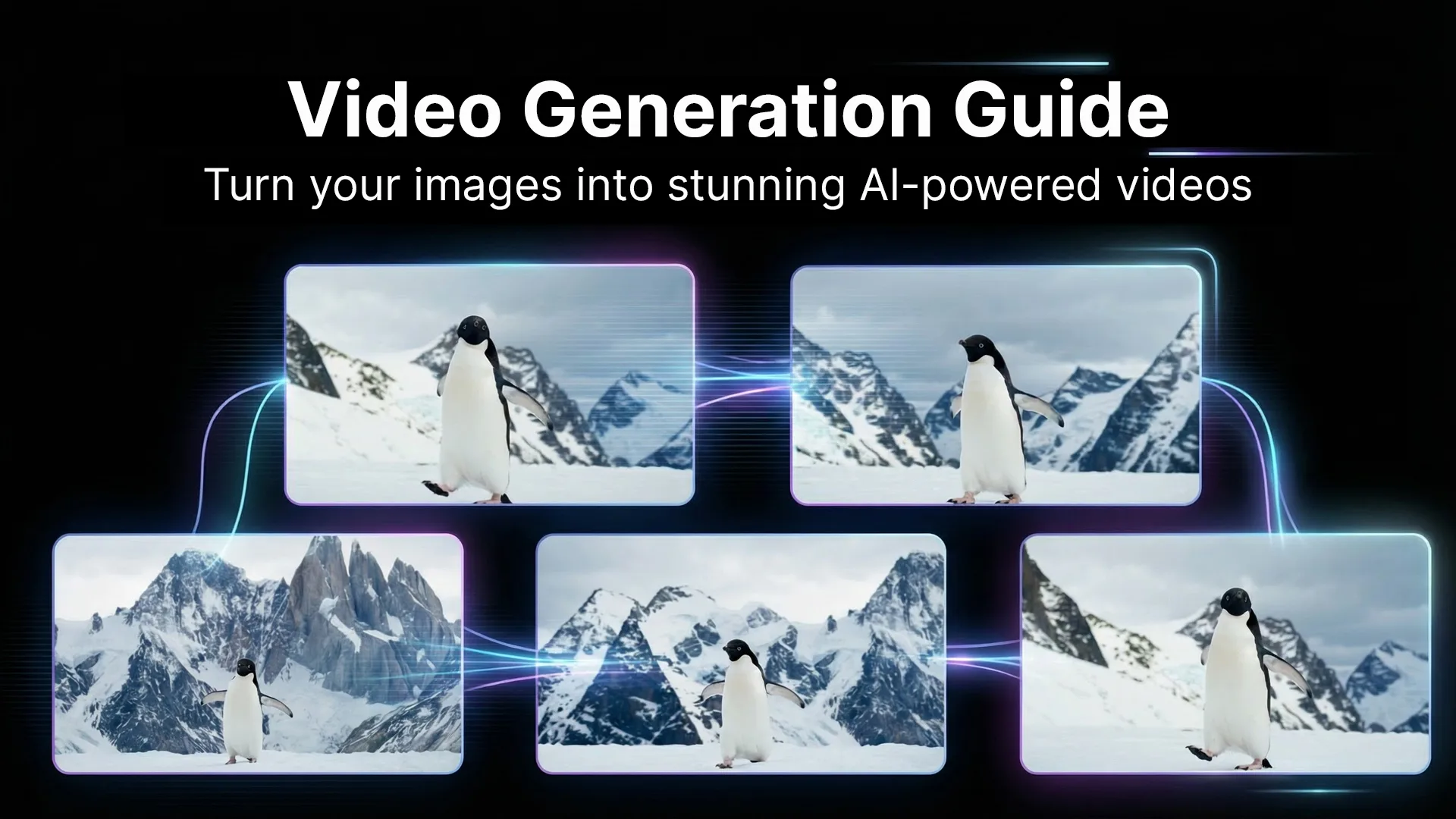
Video generation is one of LetzAI's most powerful features. This guide covers how to create stunning AI videos from your images using the Animate tab.
Getting started
LetzAI supports multiple video generation models, each with unique capabilities:
- Kling: Excellent for realistic motion and complex scenes
- Wan: Great for artistic and stylized animations
- Veo: Google's latest video model for high-quality results
To create a video: navigate to the Animate tab and upload or select an image, choose a model, add motion prompts describing the motion you want, set the duration, and generate. Higher quality and longer duration videos use more credits — check the costs before generating.
Video-Extend and Additional Shots
Video-Extend lets you continue an existing video by generating additional frames that match the original motion and style. Select a video in the Animate tab, switch to Extend mode, add a new motion prompt describing what should happen next, and select quality and audio settings.
Additional Shots (Kling V3) lets you guide different sections of the same video using multiple motion prompts. You still generate one final video file, but the model follows a new prompt for each timed section. Shot 1 starts from your uploaded reference image, each shot has its own prompt and duration, and the final video can be up to 15 seconds (each shot at least 3 seconds).
Example timeline: Shot 1 (0–5s) camera slowly zooms toward the subject, Shot 2 (5–10s) hard cut to a side angle as the subject starts walking, Shot 3 (10–15s) wide cinematic shot with wind moving through the environment.
Writing effective motion prompts
The key to great video generation is describing motion clearly.
Camera movement: "Camera slowly panning left to right", "Gradual zoom into the subject's face", "Camera tracking forward through the scene", "Orbiting around the subject."
Subject motion: "Person turns their head slightly and smiles", "Hair gently blowing in the wind", "Eyes blinking naturally", "Subtle breathing movement."
Environment animation: "Leaves rustling in the breeze", "Water rippling softly", "Clouds drifting across the sky", "Fire flickering and dancing."
Best practices
Choose the right source image. Start with a clear, well-lit, high-quality image. Images with clear subjects and natural poses animate better. 16:9 or 9:16 aspect ratios work well for video.
Keep motion realistic. Start with subtle movements — dramatic changes can look unnatural. Match the motion to what would be physically possible, and consider the weight and physics of objects in your scene.
Advanced tips: Upscale your source image first for higher quality video output. Generate multiple versions and pick the best one. Use the Edit tab to perfect your image before animating. For social media, think about how the video will loop.
Common use cases
Social media: Create eye-catching animated posts for Instagram, TikTok, or Twitter. Short looping videos with subtle motion perform well.
Product showcases: Animate product images with gentle rotation or lighting changes for dynamic marketing content.
Portraits: Bring portraits to life with natural movements like blinking, subtle smiles, or hair movement.
Landscapes: Add movement to landscape photos with flowing water, moving clouds, or swaying vegetation.
Troubleshooting
Video looks distorted: Try a higher quality source image, simplify your motion prompt, or choose a different model.
Motion is too subtle: Be more specific in your motion description, try a longer duration, or increase motion intensity if available.
Motion is unnatural: Reduce the complexity of your prompt, focus on one type of motion at a time, and match the motion to what's physically realistic.
Ready to create your first video? Head to the Animate tab and start experimenting!