
Skills are reusable instruction texts for LetzAI Chat and Canvas. Think of them as playbooks you write once, for things like of tone of voice, client rules, storyboard steps, and our agents load them when they matter.
Skills on LetzAI follow the open Agent Skills format (SKILL.md + optional reference files).
You stay in control: you author them, turn them on or off, and choose where they apply.
You can use Skills with any available Text Model, like Claude Fable or GPT-5.6.
What Skills are
A Skill are simple markdown instructions injected into the agent context when active. You can think of them as prompts that are always used when the agent is doing a task that matches the skill.
Workflow skills are multi-step procedures (like researching before a deck, or following a storyboard checklist). The agent sees a short description each turn and calls read_skill to load the full guide when your task matches.
Standing preferences are instructions like language, tone, formatting. Turn on Always apply when saving and the full body is included every turn (best for things like "always speak French" or house voice rules).
Where to manage Skills
- Settings → Skills — create, edit, import from GitHub, upload
SKILL.md, or paste content. - Puzzle icon next to the model picker in Chat and Canvas — see active skills and toggle them on the fly.
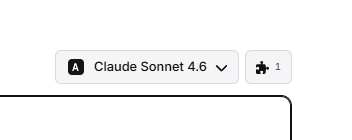
Each skill can be enabled for LetzAI Chat, Canvas, or both. You can keep up to 25 skills per account.
How to add a Skill
There are several ways to add a Skill:
1. Start from an existing sample
Open a sample file, copy the contents, then in Settings → Skills choose Install skill → Paste or New skill and paste into the editor.
2. Write your own
New skill — pick a name (like my-client-deck), write a very short description (when the agent should use it), then the instructions body.
3. Import from GitHub
Install skill → GitHub — paste a public repo URL or direct link to a SKILL.md. We fetch and parse the file; you review before saving.
Turn it on
Enable Enable after saving or flip the switch in Settings or the puzzle menu. The next message you send can use the skill.
SKILL.md format (minimal example)
---
name: my-skill-name
description: One line — when should the agent load this?
metadata:
  surfaces: [chat, canvas]
---

# Instructions

Steps the agent should follow…
The description is what the agent sees before loading the full body.
Sample Skills — open and copy
These open in a new tab as raw .md files. Copy into Settings → Skills, adjust for your workflow, save, and enable.
Speak French
Standing preference — reply in French every turn. Turn on Always apply after import.
Open sample SKILL.mdBrand voice
Warm, direct copy rules — no hype, short sentences, honest limits.
Open sample SKILL.mdStoryboard checklist
Canvas workflow — plan shots, approve the list, then generate in order.
Open sample SKILL.mdClient research first
Ask how to research before drafting copy or decks about real companies — avoid invented facts.
Open sample SKILL.mdTips
- One job per skill — easier to toggle and clearer for the agent.
- Description is the trigger — write when it should run, not what it is.
- Always apply sparingly — only for language, tone, or rules that must hold every reply.
- Test in Chat first — send a message that should trigger the skill, then refine the body.
Get started
Add your first Skill
Settings → Skills — or use the puzzle icon in Chat or Canvas.
Open Skills settingsQuestions or feedback? support@letz.ai